Quick Navigation
For players dedicated to mastering Path of Exile 2's endgame, finding a suitable loot filter is essential. Loot filters not only reduce on-screen clutter and make mapping more manageable, but they also streamline the experience by helping you focus on valuable items, removing the mental burden of sifting through irrelevant loot.
FilterBlade was the leading filter manager for Path of Exile 1, and its recent update now extends full support to PoE 2. This guide explains how to use it effectively.
Setting Up FilterBlade Loot Filters in Path of Exile 2
- Visit the official FilterBlade website.
- Choose Path of Exile 2 when prompted.
- The default NeverSink loot filter will be preselected.
- Adjust the strictness level using the slider (details provided below).
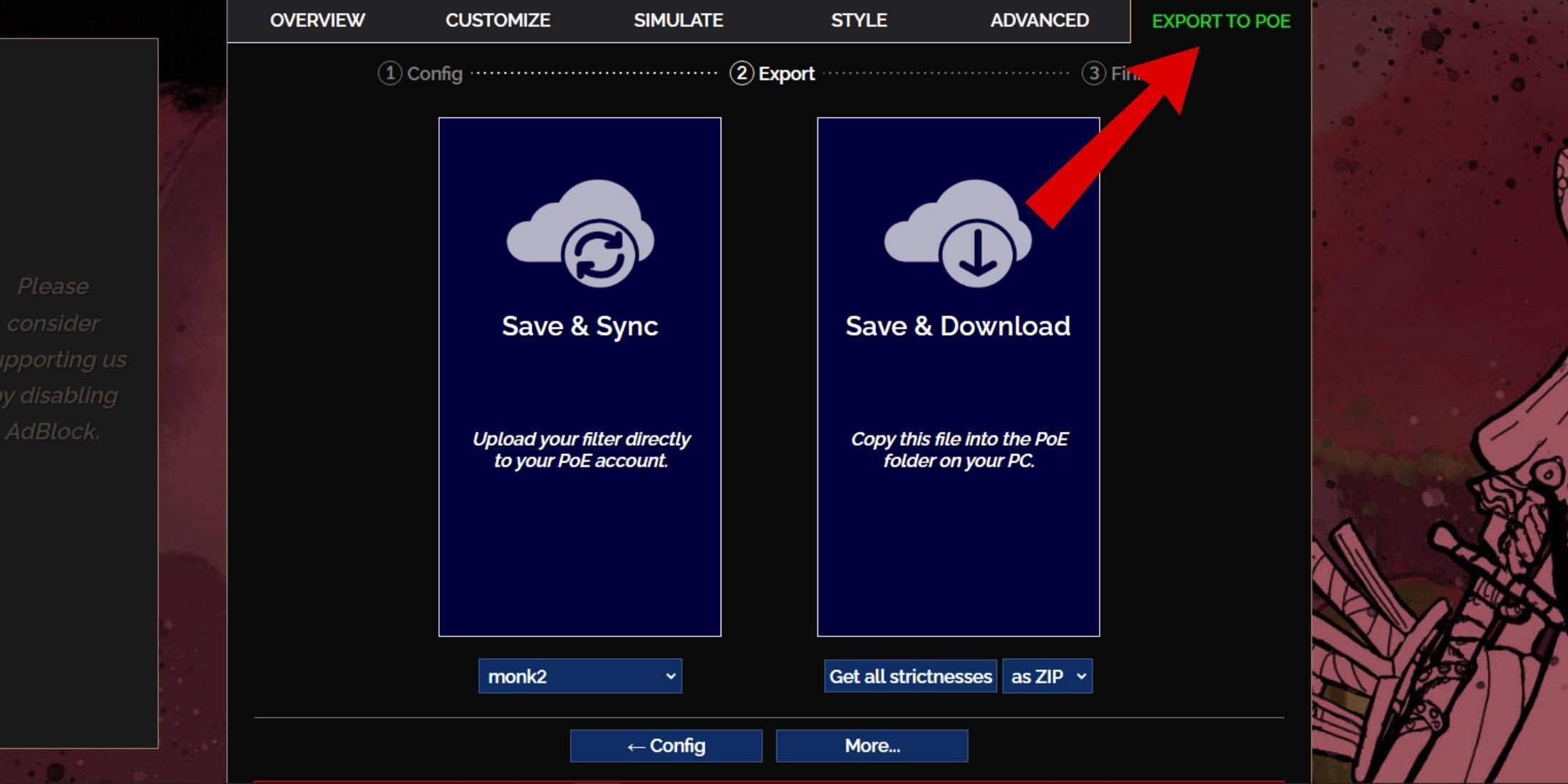
- Navigate to the 'Export to PoE' tab in the top-right corner.
- Enter a name for your filter (any name is acceptable).
- Click either 'Sync' or 'Download' at the bottom-right.
- 'Save & Sync' automatically links the filter to your PoE 2 account, enabling automatic updates whenever the author makes changes.
- 'Save & Download' saves the filter file to your computer, allowing you to download all strictness levels for easy comparison, which is particularly useful at the start of a new league or campaign.
- Launch PoE 2 and go to Options → Game.
- If you used the Sync option, select your new FilterBlade filter from the Item Filter dropdown.
- If you downloaded the file, click the folder icon next to the dropdown and navigate to your saved filter.
That's it! Your FilterBlade loot filter is now active in the game.
Choosing the Right Loot Filter Strictness
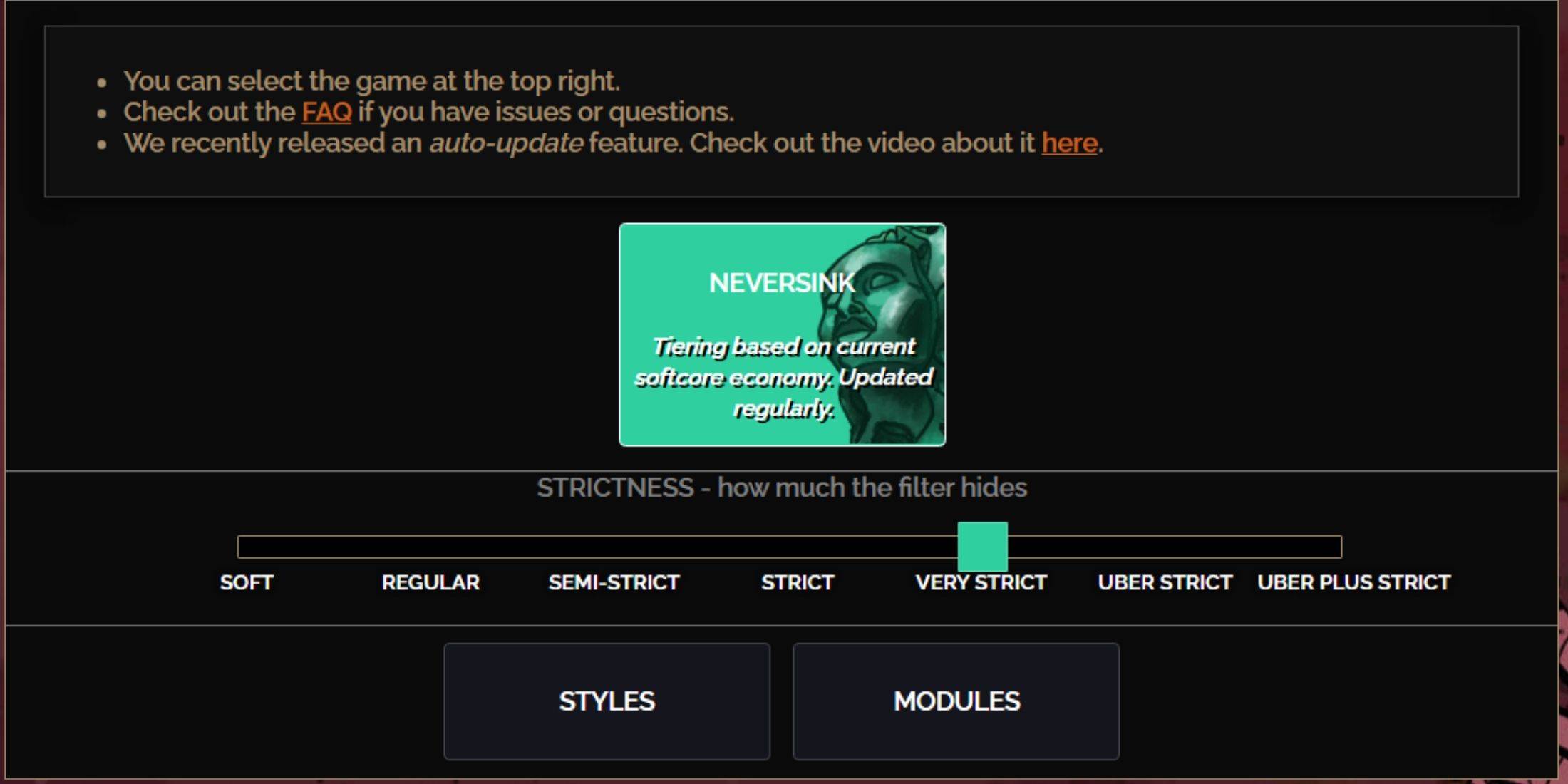
The NeverSink FilterBlade preset offers seven strictness levels. Choosing the right one is crucial, as it determines which items appear in-game. While you can always add custom rules, starting with an appropriate strictness level helps avoid issues later.
Strictness
Effect
Best For
Soft
Highlights valuable materials and currency without hiding any items.
Acts 1-2
Regular
Hides only completely useless items with no crafting or trade value.
Act 3
Semi-Strict
Filters out items with low potential or limited value.
Acts 4-6
Strict
Hides most items that lack high turnover potential.
Early endgame mapping (Waystone Tier 1-6)
Very Strict
Hides low-value rare items and basic crafting bases, plus Waystones Tier 1-6.
Mid to late mapping (Waystone Tier 7+)
Uber Strict
Hides nearly all non-tiered rares and bases, highlighting only full currencies (like Chaos or Exalted Orbs) and hiding Waystones Tier 1-13.
Late mapping (Waystone Tier 14+)
Uber Plus Strict
Shows only highly valuable currencies, high-return rares, and top uniques, while hiding Waystones Tier 1-14.
Ultra endgame mapping (Waystone Tier 15-18)
Players running through the campaign again with a new character should start with Semi-Strict. Soft and Regular levels are best for fresh league starts or Solo Self-Found runs, where every item can contribute to progression.
You can view hidden items by pressing the highlight key (ALT on PC). A useful FilterBlade feature adjusts the text size of hidden items when highlighted, making them far less intrusive—ideal for efficient loot pickup.
Customizing Your FilterBlade Loot Filter in PoE 2
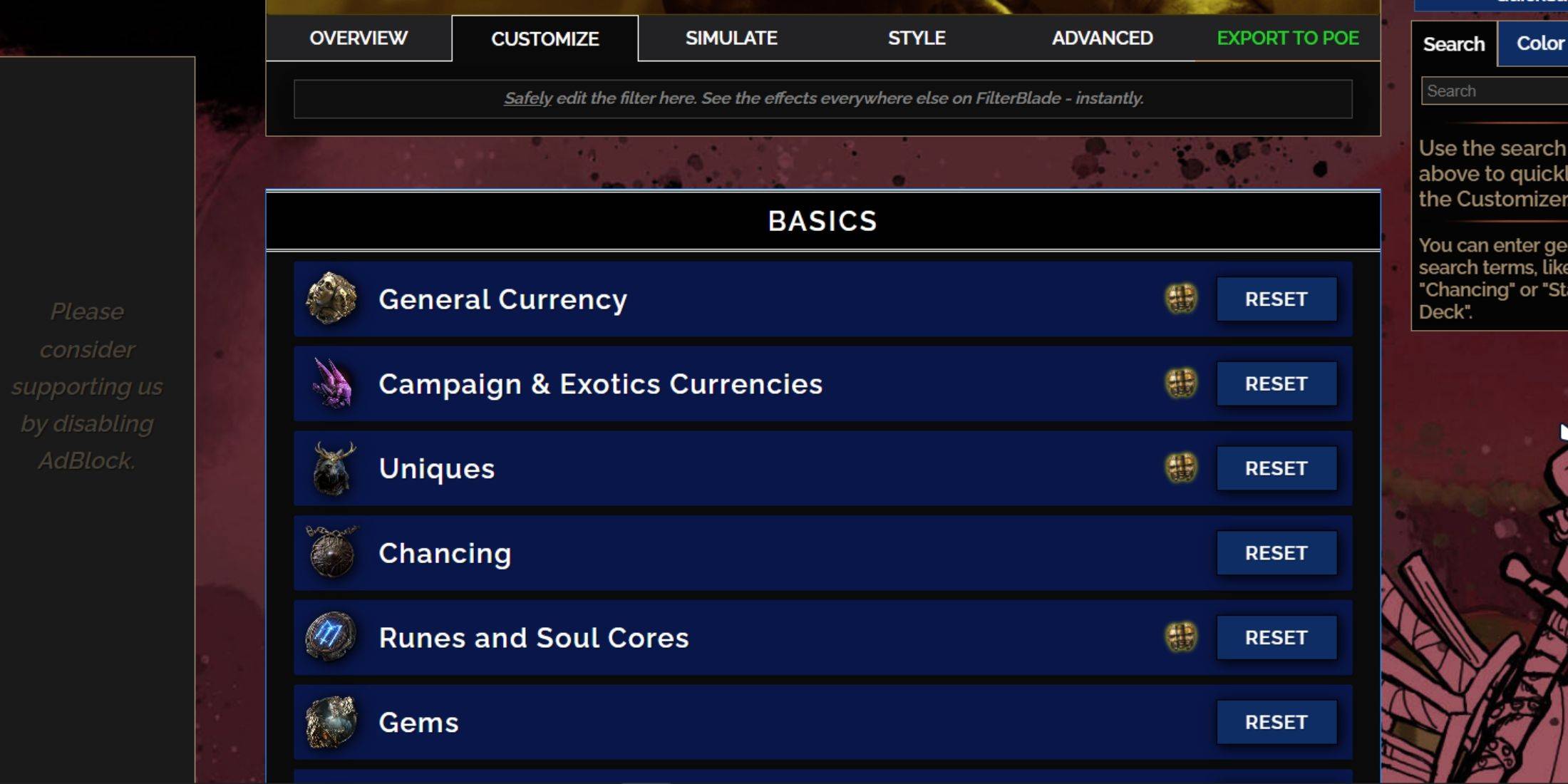
FilterBlade's strength lies in its user-friendly customization, allowing you to tweak preset filters without editing code. Virtually every aspect can be easily modified.
Using the Customize Tab in FilterBlade

For detailed customization, go to the 'Customize' tab beside Overview. Here, every possible in-game drop is organized into categories and subcategories, each with extensive customization options.
For example, to change how a  Divine Orb appears when it drops, simply type "Divine Orb" into the search bar. The relevant currency section will open, showing all visual and auditory adjustments, with a live preview above.
Click the in-game showcase icon to preview how an item's drop sound will actually sound during gameplay.
Modifying Colors and Sounds in FilterBlade
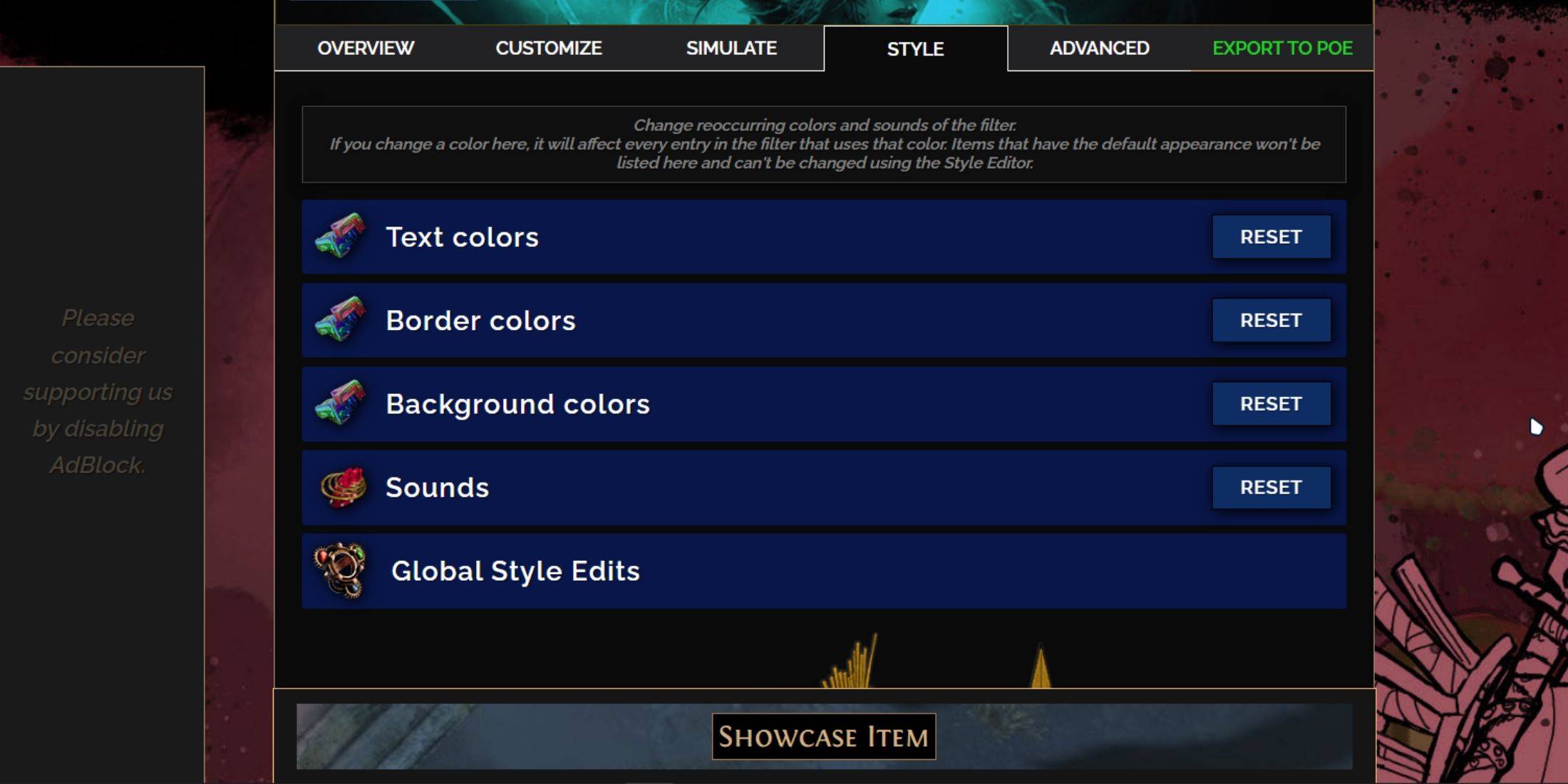
While the 'Customize' tab handles individual items, the 'Styles' tab is for filter-wide changes. Adjust text, border, and background styles, as well as audio alerts for valuable drops.
Color adjustments are straightforward, with an in-game visual preview available. For fine-tuning specific drops, use the 'Customize' tab.
Sound effects can be swapped via a dropdown menu. Choose 'Custom' to upload your own .mp3 files, or browse community-submitted sounds under 'Game & Community Sounds'—there are hundreds to choose from. Feel free to experiment; the 'Reset' option lets you revert changes easily.
New to loot filter customization? Try public Modules—community-created presets that introduce visual or audio enhancements without complicated setup.

 LATEST ARTICLES